
1. Choose the connection you actually need
Start with the person who will check in. Agree on the time, who should notice a missed check-in and what they should do next. Then choose one route:
- Email only: install the app on the check-in phone. A verified recipient can receive optional missed-check-in emails without installing a second app.
- Family dashboard: install the app on both phones and pair them with consent. The family phone can show received check-ins and history. Email alerts still need their own verification and schedule.
You can use Android, iPhone or a mix of the two. The roles describe what each phone does, not its brand. Selecting someone in Contacts does not pair their phone or give them dashboard access.
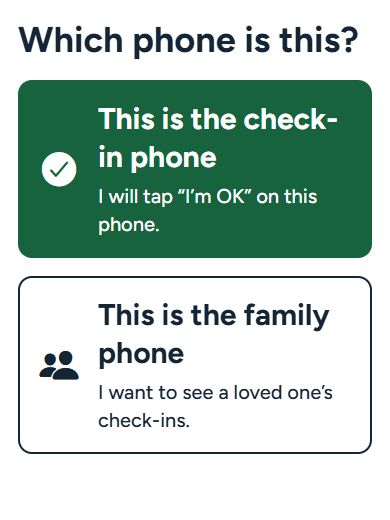
2. Prepare the check-in phone
- Install and choose the language. Use the store links below and update to the current app version. English, German, Ukrainian, Slovak, Spanish and Polish are available.
- Choose “This is the check-in phone”. This is the phone on which the older adult will tap “I’m OK”.
- Review Family Monitoring. Daily Check-In and connected family features require active monitoring access. The store shows the local price and billing period before purchase. Continuing free leaves everyday phone tools available, but does not activate daily check-ins.
- Agree on check-in times. The app supports up to three daily check-in times and local reminders. Allow notifications when prompted if you want those reminders. A reminder is a prompt on the phone, not proof that family received a check-in.
Home Screen Mode is an optional Android feature. It is not required for checking in, and iPhone does not use it. Some layouts and phone tools differ by platform.
3. For email alerts, verify and enable the schedule
On the check-in phone, open the automatic check-in alert setup. Enter the agreed recipient’s email address and review the consent wording together. Ask that recipient to read the verification code from their email and complete verification in the app.
Verification alone does not switch alerts on. Confirm the daily deadline, time zone and grace period, then use Save and enable. Check that the monitoring status is active and the intended recipient is verified. The email deadline is configured separately from the phone’s local reminder times; review both instead of assuming they are identical.
The recipient needs access to that email account, but does not need the app for this route. Check the address carefully and agree who will read and act on the emails. Delivery may be delayed or fail. Family Monitoring includes up to 200 automatic alert emails per month.
4. For the dashboard, connect the family phone
Install Senior Companion on the family member’s phone and choose This is the family phone. Use the app’s pairing flow and temporary code to connect it to the check-in phone, with the older adult’s permission. Follow the code shown in the app rather than sending contact details to an unrelated service.
Once connected, check that the family dashboard belongs to the intended person. A family connection and an email recipient are separate settings. If you want both, complete both routes. Review sharing choices together; the full address book is not uploaded simply because a contact was selected.
5. Confirm one ordinary check-in together
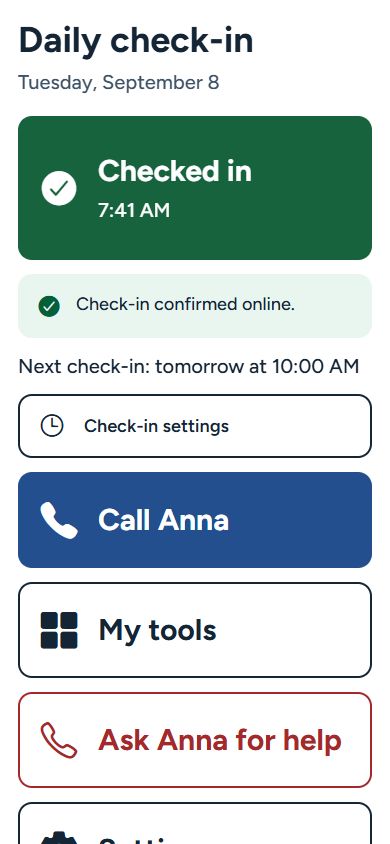
Tell the family member you are checking the setup. On the check-in phone, tap “I’m OK” with an internet connection. Look for Check-in confirmed online. If using the dashboard, confirm that the same check-in appears there with the expected date and time.
Saved on phone is different: the action still needs to sync before family can see it. Check connectivity and try again as directed in the app. Do not describe an offline save as a delivered update.
Finally, write down the family follow-up plan, including a backup person. Revisit the setup after travel, a phone replacement, notification-setting changes or a change of routine. For setup help, email the developer with the phone models and the step where you are stuck; do not send passwords or verification codes.
A small check-in. A closer connection.
Set up the routine together
Follow the Android and iPhone setup guide, or compare the two setup options. The app is free to download. Daily check-ins and connected family services require Family Monitoring. Review the plans and regional example prices. No hardware purchase is needed.