
How a daily check-in app works for a parent living alone
The app gives a family an intentional communication signal. It does not watch a person throughout the day. Agree first whether a tap, an ordinary call or a text would be the most comfortable routine.
- Choose a connection. Use a verified email recipient for optional missed-check-in alerts, or pair a second phone for the family dashboard. The email-only route does not require the recipient to install the app.
- Agree on the schedule. Choose realistic check-in times and review the separate email-alert deadline and grace period if emails are enabled.
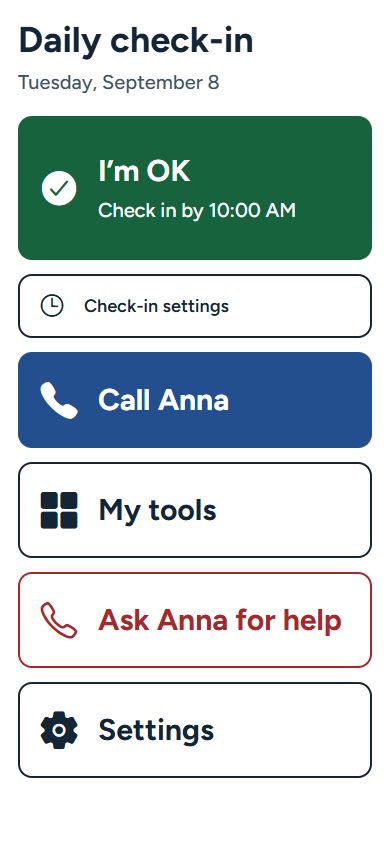
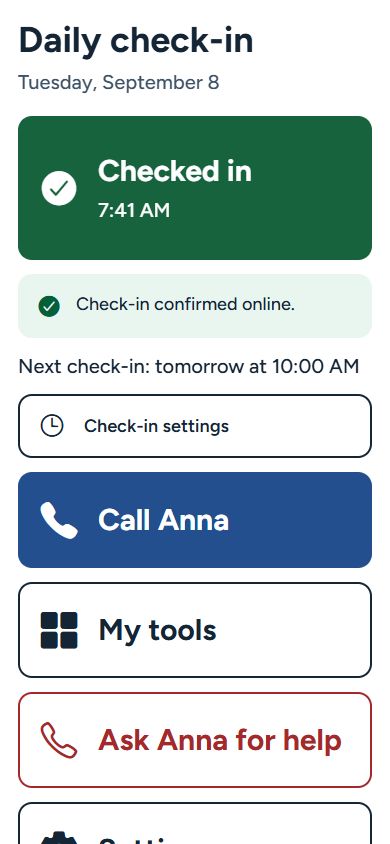
- Make the check-in. The person opens the app and taps the large “I’m OK” button. Look for online confirmation, not just a local save.
- Use the received information. A paired family member can see the received check-in and its time. If the scheduled signal is missing, use your own agreed follow-up plan.
An offline check-in must sync before family can see it. If the app says Saved on phone, it has not yet confirmed receipt by the service. A received check-in also does not prove that the person is currently well.
Follow the Android and iPhone setup guide for the two routes. Review Family Monitoring and the regional example prices before purchasing. No hardware purchase is needed.
Many older adults want to remain in their own homes and maintain independence for as long as possible. Family members may share that goal while still wondering whether everything is all right. The National Institute on Aging’s guidance on aging in place recommends planning ahead and discussing what support is needed as circumstances change.
1. Start with a conversation, not an app
Begin by asking what would feel helpful rather than announcing a monitoring plan. The difference may sound small, but it changes who controls the routine.
You might say:
“I don’t want you to feel watched. Would one quick check-in at an agreed time make things easier for both of us? What would feel comfortable to you?”
Listen for practical preferences. A parent may prefer a text, a phone call, a large on-screen button or no daily routine at all. They may want one family member to receive updates rather than a whole group. They may also want different arrangements on weekends, travel days or medical appointment days.
If they say no, do not turn the conversation into a contest. Ask whether there is another way to stay connected that they would prefer. A regular call, help from a trusted neighbor or a weekly visit may be a better fit.
2. Agree on what “I’m OK” actually means
A daily check-in is a simple communication signal. It does not prove that someone is healthy, safe from a fall or free from an emergency. Agreeing on that limitation prevents false reassurance.
A check-in can
- Confirm that the person completed an agreed action
- Create a predictable moment of connection
- Prompt family to follow up when the routine changes
A check-in cannot
- Diagnose a health problem
- Detect falls or medical emergencies
- Replace professional care or emergency services
Decide together:
- The time. Choose a point already connected to the person’s day, such as after breakfast.
- The grace period. Decide how long to wait before treating the check-in as missed. A narrow window may create unnecessary worry.
- The recipient. Choose the person who will notice and follow up. Make sure they are usually available.
- The exceptions. Agree on what to do during travel, hospital visits, poor connectivity or a change in routine.
- The review date. Revisit the plan after a week, then whenever needs or circumstances change.
3. Write down what happens after a missed check-in
A missed check-in is information, not a diagnosis. The person may be asleep, outside, busy, away from the phone or without an internet connection. Decide on a calm escalation plan before anyone is worried.
A simple follow-up ladder
If you believe there is immediate danger, contact local emergency services without waiting for the routine below.
- Wait for the agreed grace period.
- Call or send a message using the usual number.
- Try the agreed backup contact, such as a nearby relative or neighbor.
- If there is a specific reason to believe someone is in immediate danger, contact the appropriate local emergency service.
Use the fuller missed-check-in guide and family plan template.
Keep current phone numbers, access instructions and relevant professional contacts somewhere the responsible family member can reach them. A daily check-in routine should complement—not replace—a suitable emergency plan, medical alert service or professional care when those are needed.
4. Share the minimum information that helps
Reassurance does not require a continuous location feed, access to an entire address book or a detailed report of someone’s day. Ask what the family actually needs to know.
- Who can see a check-in?
- Does the tool share location, and is that really necessary?
- Can the older adult pause or remove the connection?
- What information is stored online?
- What happens when the phone is offline?
Explain the setup in plain language and go through the chosen email or paired-phone route together. The person checking in should be able to see the same arrangement that the family member sees.
5. Choose the simplest tool that fits the agreement
The right tool is the one the person will comfortably use. If a normal call or text already works, you may not need anything else. If navigating contacts and messages is frustrating, a dedicated daily check-in can reduce the task to one familiar action.
Senior Companion offers a large “I’m OK” button and an optional paired family view. When Family Monitoring is active, a check-in that reaches the server can appear on the family phone. Families may also choose to enable missed-check-in email alerts after verifying the recipient and confirming the schedule.
The app distinguishes a check-in saved offline from one received by the server. Until an offline check-in syncs, it will not appear on the paired family dashboard.
Keep the relationship bigger than the signal
A green check mark is useful, but it is not companionship. Continue the ordinary calls, visits, shared photos and conversations that make someone feel known rather than managed. The National Institute on Aging also offers practical suggestions for staying connected and reducing social isolation.
After the first week, ask two questions: “Was the check-in easy?” and “Did it make either of us more anxious?” Adjust the time, grace period or follow-up plan if the routine is creating pressure rather than reassurance.
One tap. “I’m OK.”
Try a simpler daily check-in
Follow the setup guide or choose email alerts or a family dashboard.
Senior Companion is available for Android, iPhone and iPad. The app is free to download; daily check-ins and the connected caregiver view require a Family Monitoring subscription.
Senior Companion is a family-support and convenience app, not a medical device or emergency-response service. Check-ins, syncing and alerts depend on setup, connectivity and service availability and may be delayed or fail.